Beacons
Beacons are the small Bluetooth devices that tell the visitor app which story is nearby. In the app, this area is called Manage Beacons.
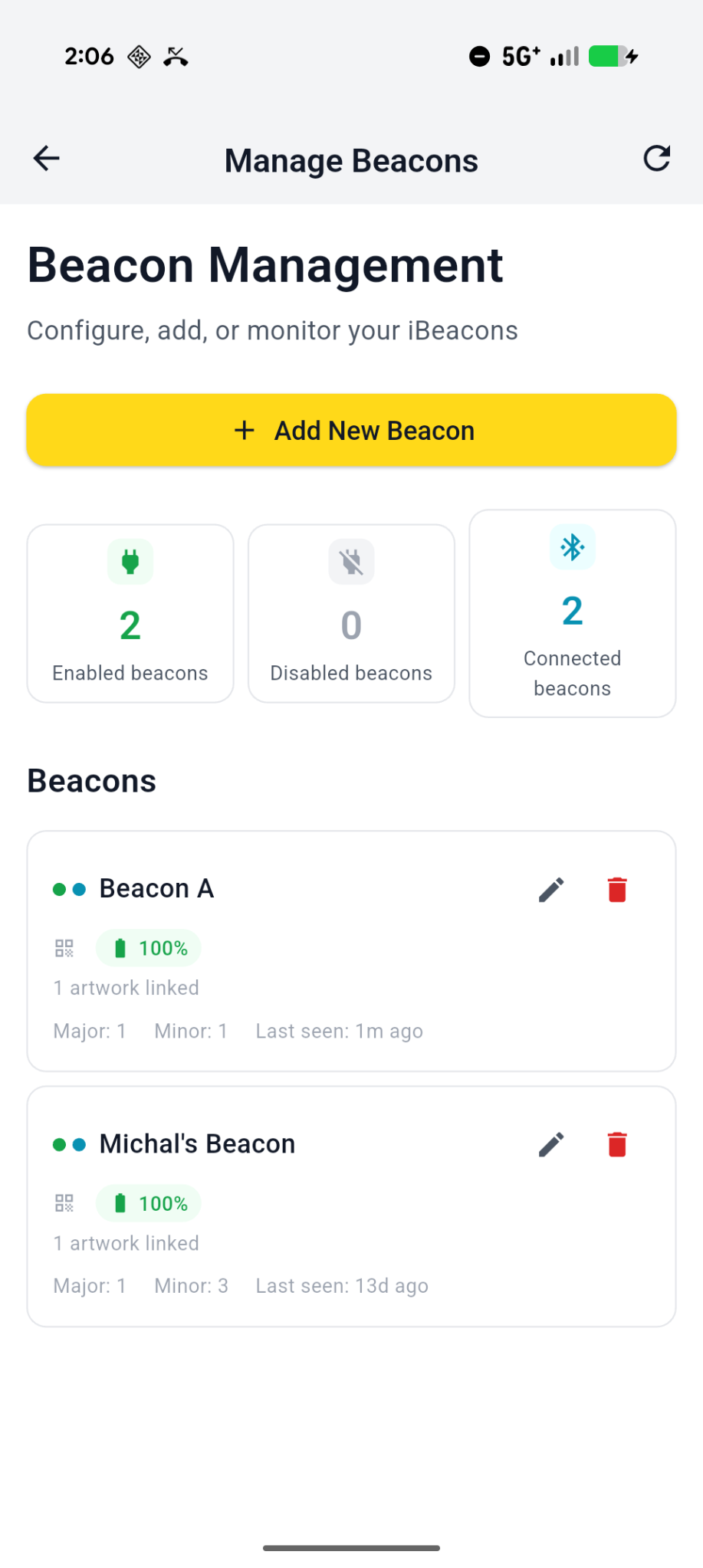
- Pairing a beacon — adding a new beacon to your venue.
- Calibration — tuning how close visitors need to be before a story appears, including the per-beacon Detection range setting (Touch/Close/Room/Wide).
- Multi-story beacons — using one beacon for a group of related stories.
- Troubleshooting signal — when beacons aren't detected as expected.
Beacon scanning is mobile-only
Pairing, calibration, and live signal troubleshooting need Bluetooth, so they only work in the iOS or Android app. The browser console can show beacon records and let you edit a beacon's name, unique ID, broadcasting on/off, detection range, and story links — but it can't scan for nearby beacons, so pairing a new beacon always starts in the app. Both the app and the console can withdraw a beacon from service and return it.
Withdrawing a beacon
To take a beacon out of service without losing anything, withdraw it. In the app, on Manage Beacons, tap the crossed-out eye button on the beacon's card (its label is Withdraw <name> from service), or tap the beacon to open its details and choose Withdraw from service, then confirm. Visitors stop seeing the beacon. Nothing is deleted: its name, Major/Minor and story links stay, and the physical beacon isn't touched.
A withdrawn beacon stays on the list, marked Withdrawn. To put it back, tap the restore button on its card (labelled Return <name> to service), or open its details and choose Return to service, then confirm. Withdrawing and returning is also part of how you recalibrate a beacon.
Deleting a beacon permanently
A withdrawn beacon stays on your list so it can be returned later. If a beacon is gone for good, delete it: withdraw it first, then open it and choose Delete permanently. In the app, tap the beacon's card to open its details; in the browser console, it is under Service status. Either way, you confirm by typing the beacon's ID exactly as the confirmation shows it. That ID isn't always the Unique ID in the beacon's details, so copy it from the confirmation.
Deleting needs an internet connection. Only Tenant Admins and Organizers, and anyone else your venue has allowed to manage beacons, see Delete permanently; for everyone else it isn't shown. If someone returns the beacon to service before you confirm, beacbeac says so and deletes nothing: withdraw it again, then retry.
App version
The app offers Delete permanently from beacbeac 1.29.0. In 1.28.0 and earlier, use the browser console.
Deleting removes the beacon's record and its story links, and it can't be undone. Visitor statistics that mention the beacon are kept. If a new beacon is later paired with the same Major and Minor, it gets the same canonical ID, so those kept statistics can then cover two beacons.
Deleting doesn't change the physical beacon
A beacon that still has power keeps broadcasting its old Major and Minor, and once the record is gone those numbers are free for another beacon. Switch the old one off (remove its battery) or re-pair it before you reuse those numbers.