First login
When you open beacbeac for the first time, you'll see the splash screen.
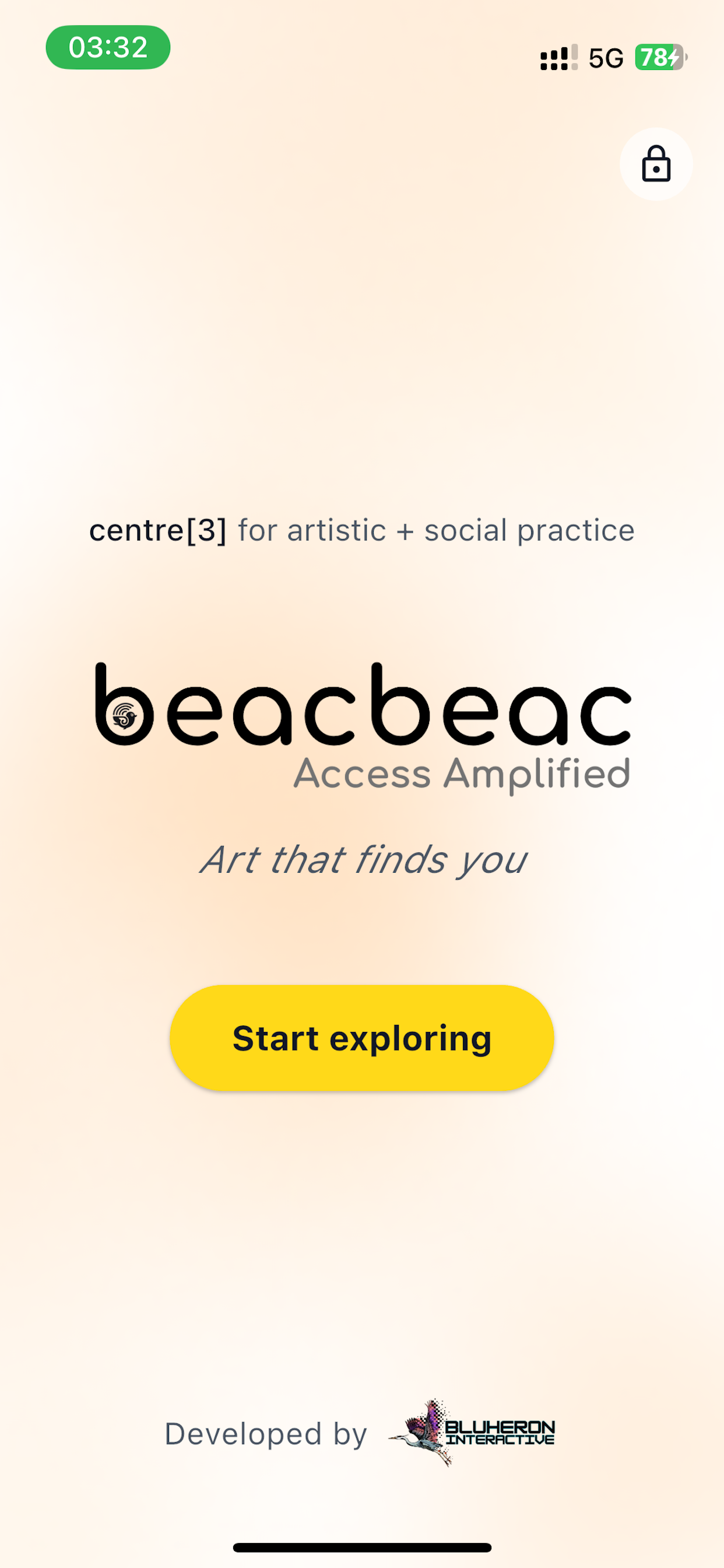
The big Start exploring button is the visitor experience — anyone can tap it to explore your space as a visitor.
To sign in as a staff member, tap the padlock icon in the top-right corner of the splash screen. That opens the Admin Login screen.
Signing in
The login screen asks for three things:
- Tenant ID or name — the short identifier for your venue. Your administrator will give you this.
- Email — the address invited to your account.
- Password — the one you set when you accepted your invite.
Tap Log In. You'll land on the Admin Dashboard.
No "Forgot password?" link
beacbeac doesn't expose a self-serve password reset on the login screen. If you can't sign in, contact your administrator — they can trigger a reset for you.
Signing in from the web
You can sign in to beacbeac from a desktop browser too. This is the recommended way to do longer admin work like:
- Bulk-editing story text and metadata
- Reviewing visitor statistics
- Adding or removing staff accounts
Open your web browser and go to https://app.beacbeac.com/. The browser console is a separate, purpose-built site rather than the app in a browser, so the sign-in form looks a little different: it asks for your email address, your password, and your Organization — that last field takes the same value the app calls your Tenant ID. Your password manager can fill all three.
Some things are only in the browser console: reviewing visitor statistics, adding or removing staff accounts, and managing organizations. Some things are only in the app — see the warning below.
No Bluetooth on the web
The web admin cannot scan for beacons. Pairing, calibration, and any troubleshooting that requires reading live beacon signal must be done from the iOS or Android app. The web admin will still show beacon records and let you edit names and story links.
Working across multiple venues
If your account has access to more than one venue, you'll enter that venue's Tenant ID when you log in. To switch venues, log out and log in again with the other tenant ID.