Visitor Space
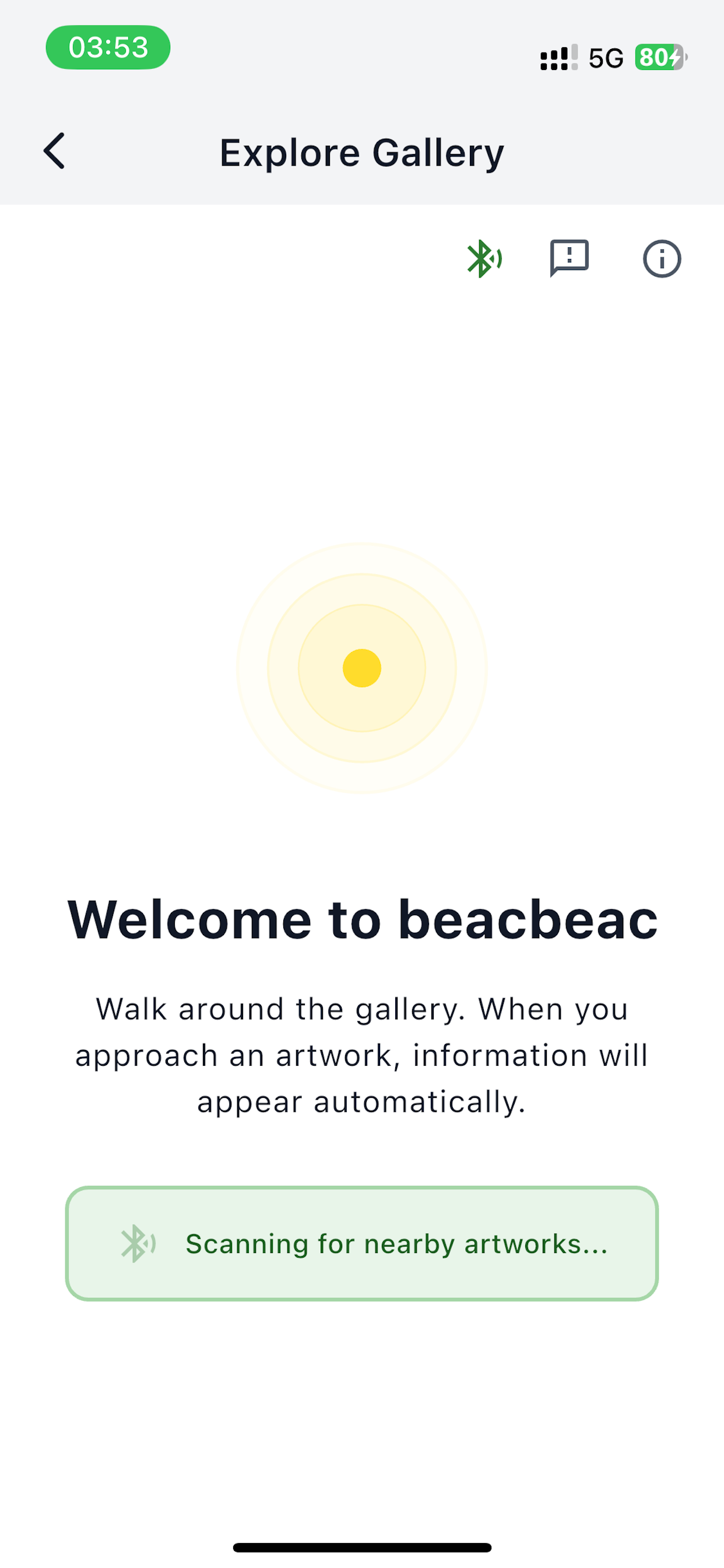
The Explore screen is what visitors see when they tap Start exploring on the splash screen. There's no login on the visitor side — anyone with the app can explore your space.
What visitors see
As a visitor moves through your space, the app scans for nearby beacons and shows them the linked story:
- Title and creator — shown at the top, pulled from the story record.
- Media — whichever the story carries, stacked below the title: the photo, a play/pause player for an uploaded audio track (never autoplays), and a video player (e.g. for a sign-language clip).
- Description text — what you wrote in Manage Content.
- Listen button — taps into the phone's text-to-speech to read the description aloud. See AI descriptions & audio.
- Multi-story tile grid — when the beacon is linked to several stories, visitors get a grid to tap through.
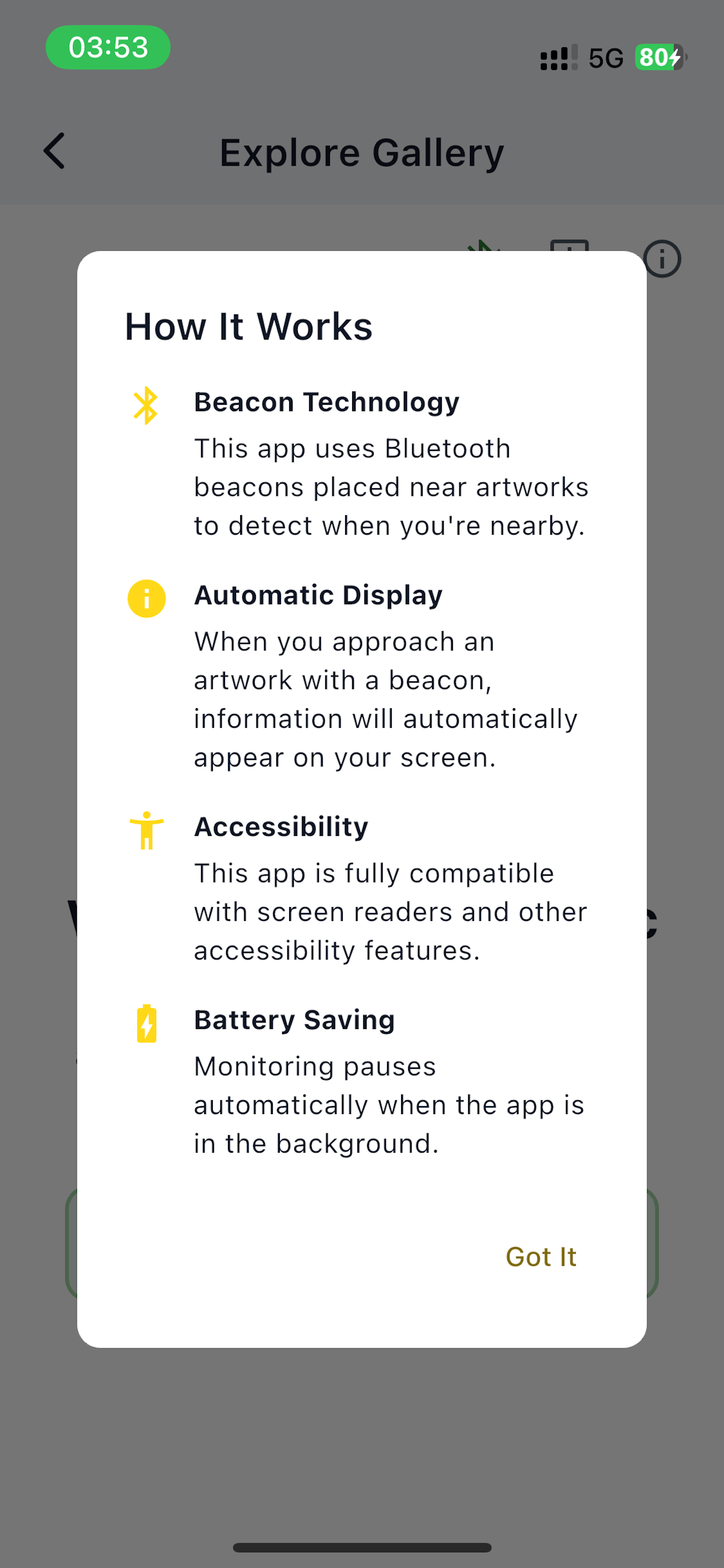
The first time someone opens the Explore screen they see a short How It Works explainer:
Languages
The visitor experience follows the device language: English, with Spanish and French translations. Story titles and descriptions appear as you wrote them — beacbeac doesn't translate your content.
Finding stories with the phone in a pocket
Visitors don't have to hold their phone up as they walk. The first time someone taps Start exploring, beacbeac offers to keep listening while their screen is off. If they say yes, a beacon found with the phone locked sends them a notification naming the story; tapping it opens that story.
Each beacon notifies once per visit, so someone who lingers in front of a piece — or walks the same corridor twice — isn't buzzed repeatedly. Nothing is sent while the app is open on screen, since the story is already showing.
Visitors can decline, and plenty will. The Explore screen then says so plainly, and keeps working exactly as before: stories are found while the screen is open. There's a Detection settings button in the Explore action row where they can check the current state at any time.
What to tell visitors at the door
Two things are worth mentioning in your own signage or greeting:
- iOS asks for "Always" location. This is Apple's wording, not ours — Apple classifies beacon detection as a location service. beacbeac never records where anyone is, only which beacon is nearby. Visitors who pick "While Using" will only find stories with the app open, and the app tells them so.
- Android shows an ongoing notification while beacbeac is listening. It's how Android permits background scanning, and visitors can stop it from the notification itself. On Android 11 and older, background detection isn't available at all and the app says so.
The session stops on its own after two hours with nothing found, so a visitor who forgets about it won't have it running overnight.
Stories a visitor has already seen
beacbeac remembers the stories it has shown someone, so they can look back at one from a room they've already left — useful in a large space, or for someone visiting several beacbeac spaces in a day.
That list lives only on the visitor's phone. It's never uploaded, never attached to an account, and you as an organizer never see it. It holds the last 14 days and the visitor can clear it whenever they like.
Previewing before opening to the public
Before a public opening, walk your space yourself with the visitor app:
- Sign out of the admin (or use a separate device).
- Tap Start exploring on the splash screen.
- Walk past every beacon, in the order a visitor would.
- For each story: check the title, image, and description look right; play any uploaded audio track or video to confirm they're the right files; tap Listen to make sure the spoken description is clear and pronounces the creator's name correctly.
Audio accessibility
Audio is on by default for every story that has a description text. Visitors who can't see the screen well can navigate your space by audio alone — make sure your descriptions read cleanly out loud, not just on the page. See AI descriptions & audio.